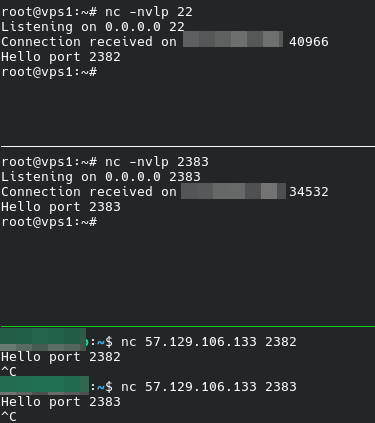
Use HAProxy to keep 2 free TCP ports
HAProxy has many option, that article show a simple use and is designed for beginners. For more info about HAProxy option and use cases, please read the official documentation.
Summary
Someone opened a ticket to ask how they could keep the two TCP ports they need for an application. That is possible by using a tweak. For that purpose we'll install haproxy on a VPS and use 2 others VPS to redirect traffic. To follow that method, you need to own a DNS reccord. Please note that in that example only VPS1 has a second free port. You can do the same on VPS2 but, you'll have to ssh to a VPS as a bastion to connect back to VPS2. For the sake of simplicity we won't do that in this article.
You can set all in one VPS and use some listening ports on IP 127.0.0.1.
That article uses a Debian GNU/Linux, you can adapt it to your distribution. In the case of RedHat like, remember that SELinux needs extra configuration steps.
Design
        .----------.
        | Internet |
        '----------'
              X
         +--------+
         |TierHive|
         |Haproxy |
         +--------+
              X
          +=======+
          |  VPS  |
   XXXXXXX|Haproxy|XXXXXXXX
   X      +=======+       X
   X                      X
+-----+                +-----+
|VPS 1|                |VPS 2|
+-----+                +-----+
For that purpose we'll install HAProxy on 10.x.x.5, VPS1 on 10.x.x.6 and VPS2 on 10.x.x.7. Then, we'll modify sshd to change from port 22/TCP to 2222/TCP on VPS1, then, redirecting HTTP traffic from VPS Haproxy to its related VPS(1 or 2) doing that based on their fqdn and SSH to VPS1.
In that situation, it would have been more efficient to use our HAProxy service for VPS2, some usecase, like adding/removing headers, filtering... might requiere you owning your reverse proxy service.
Roadmap.
- Deploy the VPS
- Configure the HAProxy VPS
- Configure VPS1 and VPS2
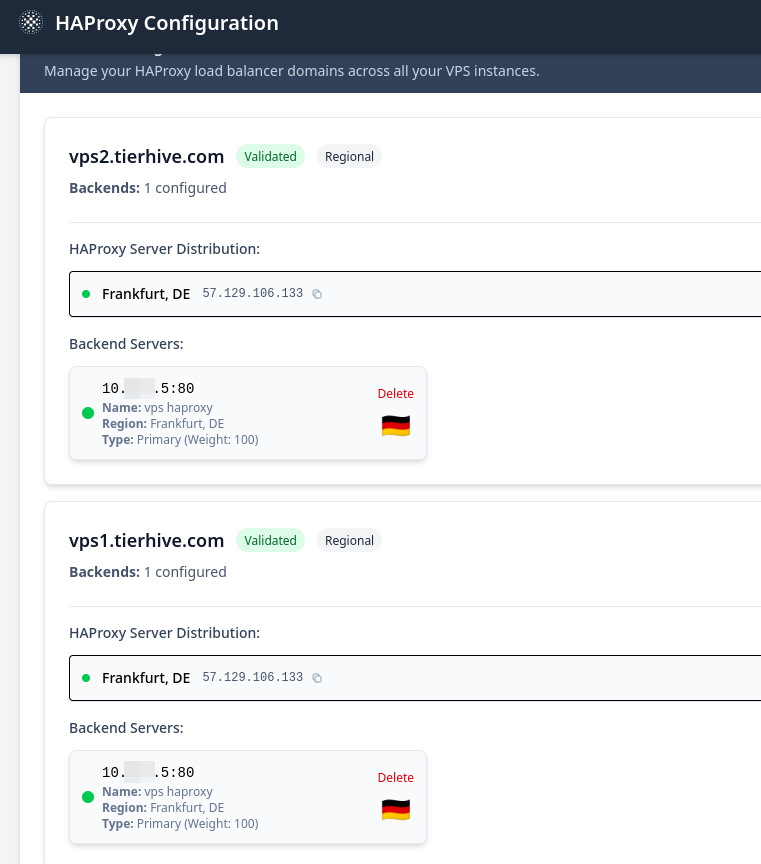
- Add your domains (in that article: vps1.tierhive.com and vps2.tierhive.com) to the HAProxy page and set your HAProxy VPS as backend for both.
- Run tests
Deploy the VPS
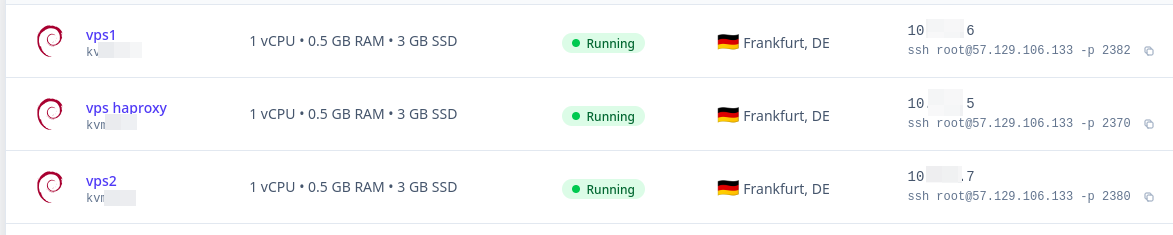
That part is straightforward and shouldn't need any article.
Configure the HAProxy VPS
HTTPS negotiation is done on the TierHive HAProxy, the traffic you are receiving is HTTP. Only the port 80/TCP is requested.
Install haproxy and your favorite text editor (vim in that article, you can use nano instead is you are not familiar with vim).
apt update
apt install -y haproxy vim
Configure the service to redirect HTTP traffic based on the fqdn. We can label some traffic based on their fqdn, to do so we are creating the corresponding ACL and redirecting the traffic to the corresponding backend.
Detail
Change the global option to set longer timeout in the case of a delay.
    timeout connect 5s
    timeout client 50s
    timeout server 50s
Enable HTTP listening and add the xforward-for option
###############
# HTTP Frontend #
###############
frontend http_frontend
    bind *:80
    option forwardfor
    capture request header Host len 32
ACL format is: acl <ACL name> hdr(host) -i <fqdn> Redirection format is: use backend <backend name> if <ACL name>
    acl ACL_VPS1_TH hdr(host) -i vps1.tierhive.com
    use_backend backend_vps1_th if ACL_VPS1_TH
Create the backend servers with the service port (you can for example use containers with external ports -p 127.0.0.1:60151:80 and configuring your backend on port 127.0.0.1:60151)
###############
# HTTP Backend #
###############
backend backend_vps1_th
    http-request set-header Host %[req.hdr(Host)]
    http-request set-header X-Forwarded-For %[src]
    server VPS1 10.x.x.6:80
Create a TCP listener on the HAProxy VPS free TCP port (2071 in the following example). If you need help to locate it, read that article.
###############
# TCP FrontEnds #
###############
frontend front_ssh
        bind :2371
        mode tcp
        option tcplog
        default_backend backend_ssh_vps1
Create a backend for the backend custom SSH port.
###############
# TCP BackEnds #
###############
backend backend_ssh_vps1
        mode tcp
        server  TH_VPS1 10.x.x.6:2222
Full haproxy.cfg
located at /etc/haproxy/haproxy.cfg by default in Debian GNU/Linux.
global
        log /dev/log    local0
        log /dev/log    local1 notice
        chroot /var/lib/haproxy
        stats socket /run/haproxy/admin.sock mode 660 level admin
        stats timeout 30s
        user haproxy
        group haproxy
        daemon

        # Default SSL material locations
        ca-base /etc/ssl/certs
        crt-base /etc/ssl/private

        # See: https://ssl-config.mozilla.org/#server=haproxy&server-version=2.0.3&config=intermediate
        ssl-default-bind-ciphers ECDHE-ECDSA-AES128-GCM-SHA256:ECDHE-RSA-AES128-GCM-SHA256:ECDHE-ECDSA-AES256-GCM-SHA384:ECDHE-RSA-AES256-GCM-SHA384:ECDHE-ECDSA-CHACHA20-POLY1305:ECDHE-RSA-CHACHA20-POLY1305:DHE-RSA-AES128-GCM-SHA256:DHE-RSA-AES256-GCM-SHA384
        ssl-default-bind-ciphersuites TLS_AES_128_GCM_SHA256:TLS_AES_256_GCM_SHA384:TLS_CHACHA20_POLY1305_SHA256
        ssl-default-bind-options ssl-min-ver TLSv1.2 no-tls-tickets

defaults
        log     global
        mode    http
        option  httplog
        option  dontlognull
        timeout connect 5s
        timeout client 50s
        timeout server 50s
        errorfile 400 /etc/haproxy/errors/400.http
        errorfile 403 /etc/haproxy/errors/403.http
        errorfile 408 /etc/haproxy/errors/408.http
        errorfile 500 /etc/haproxy/errors/500.http
        errorfile 502 /etc/haproxy/errors/502.http
        errorfile 503 /etc/haproxy/errors/503.http
        errorfile 504 /etc/haproxy/errors/504.http

###############
# HTTP Frontend #
###############
frontend http_frontend
    bind *:80
    option forwardfor
    capture request header Host len 32

    #ACL names are arbitrary
    acl ACL_VPS1_TH hdr(host) -i vps1.tierhive.com
    acl ACL_VPS2_TH hdr(host) -i vps2.tierhive.com

    #backend names are arbitrary
    use_backend backend_vps1_th if ACL_VPS1_TH
    use_backend backend_vps2_th if ACL_VPS2_TH

    #I set VP1 as default backend, It would be cleaner to respond with a dedicated service
    default_backend backend_vps1_th

###############
# HTTP Backend #
###############
backend backend_vps1_th
    http-request set-header Host %[req.hdr(Host)]
    http-request set-header X-Forwarded-For %[src]
    #server name is arbitrary
    server VPS1 10.x.x.6:80

backend backend_vps2_th
    http-request set-header Host %[req.hdr(Host)]
    http-request set-header X-Forwarded-For %[src]
    server VPS2 10.x.x.7:80

###############
# TCP FrontEnds #
###############
frontend front_ssh
        bind :2371
        mode tcp
        option tcplog
        default_backend backend_ssh_vps1

###############
# TCP BackEnds #
###############
backend backend_ssh_vps1
        mode tcp
        server  TH_VPS1 10.x.x.6:2222
Before any HAProxy restart or reload, check if the configuration file is correct by running the following command
haproxy -c -f /etc/haproxy/haproxy.cfg #change with your actual configuration path
Enable and start haproxy service
systemctl enable --now haproxy.service
systemctl restart haproxy.service
Tests
The command ss shows that haproxy is listening the configured ports

Logs
You can read haproxy logs using journalctl, in the situation you need a dedicated file, install rsyslog and restart haproxy service.
journalctl -fl -u haproxyConfigure VPS1 and VPS2
Install your web servers in both VPS. In that article I'll use python3, already installed by default.
apt install -y python3In VPS1, reconfigure the SSH listening port by editing the /etc/ssh/sshd_config file to modify #Port 22 to Port 2222 and ClientAliveInterval 120 to ClientAliveInterval 20.
That can be done using sed.
sed -i 's/#Port 22/Port 2222/g' /etc/ssh/sshd_config
sed -i 's/ClientAliveInterval 120/ClientAliveInterval 20/g' /etc/ssh/sshd_config
If you are using SELinux, remember to use semanage to change the SSH port: semanage port -a -t ssh_port_t -p tcp 2222
Restart the SSH service
Using Debian:
systemctl restart sshWe will use for running tests python3 http.server module to run a simple http server in both servers.
mkdir /tmp/pythontests
cd /tmp/pythontests
python3 -m http.server 80
Using python3 http.server is not a daemon process. If you exit it or close the SSH connection, the python3 http.server will shut down.
Add backends to HAProxy VPS
Add both domains to the HAProxy VPS.
Tests
Connection SSH on HAProxy VPS second TCP port, forwards the traffic to VPS1. The screenshot below shows Haproxy VPS IP as the origin IP.
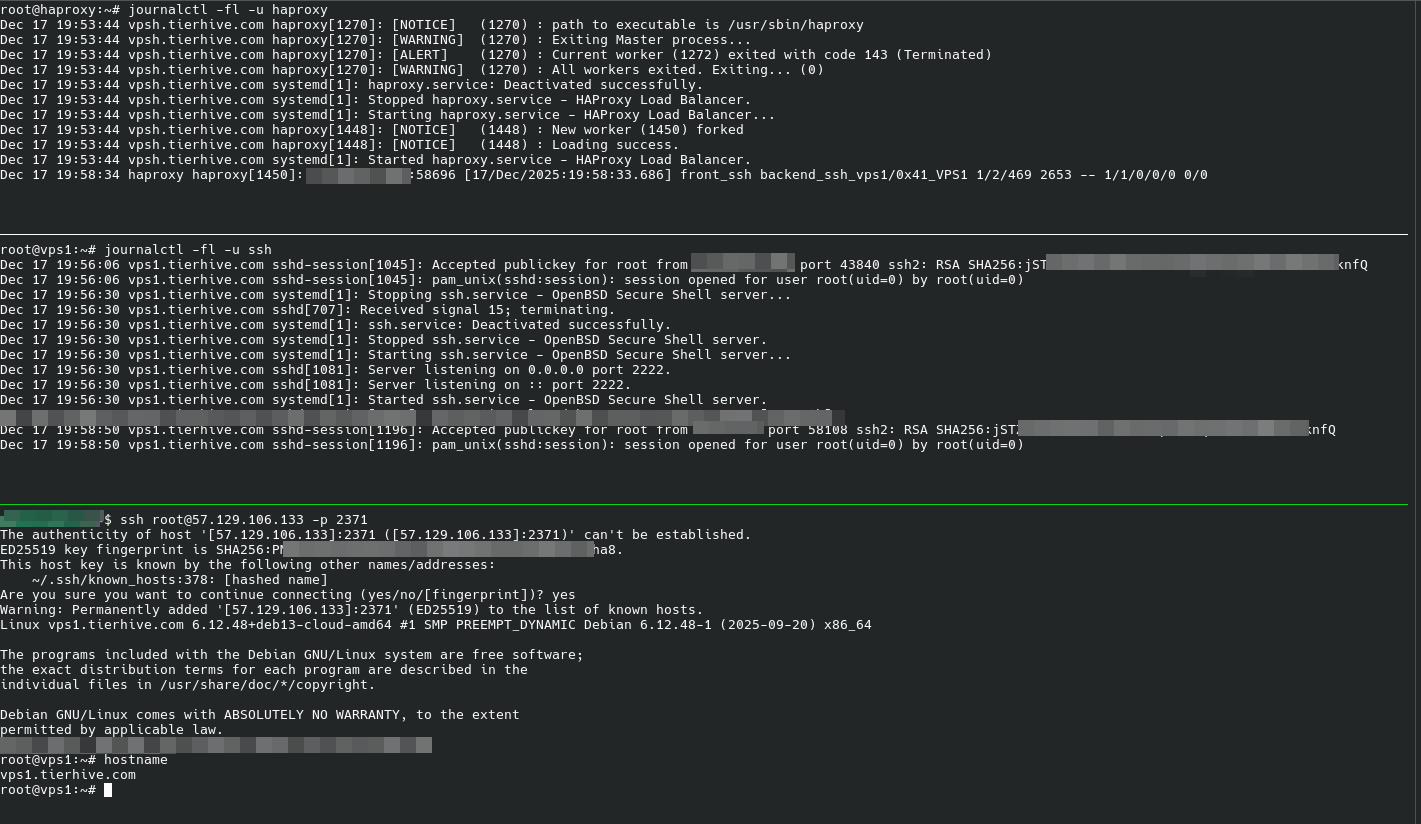
The following screenshot shows that the traffic is redirected to the different VPS, the original public SSH port doesn't respond.
VPS1 is connected using ssh on the HAProxy second port.
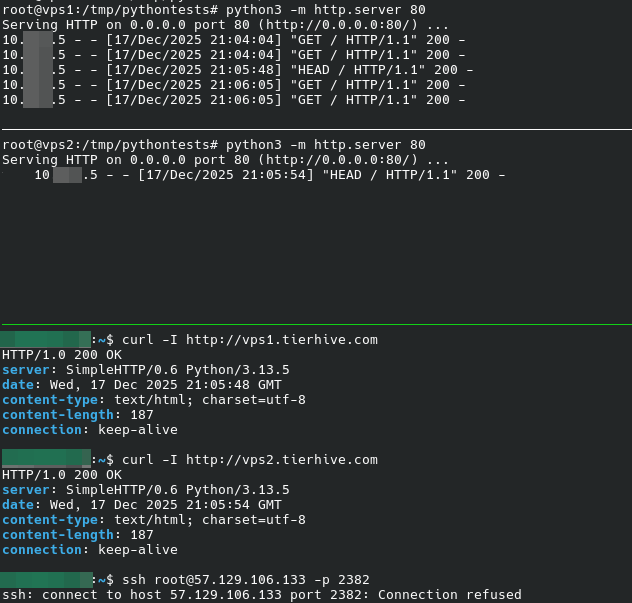
Two TCP free ports + SSH connection using a haproxy relay + HTTP relayed using HAProxy