Configuring IPv6 on TierHive
Summary
TierHive finally provides iPv6 to their customers, now you can have IPv6 attached to your VPS (up to 10 at the minute I'm writing this blog post). This article shows you how to activate it and configure that IPv6on most popular TH distribution.
Why using IPv6?
- You don't have access to IPv4 from your country. In that case configure your VPS IPv6 from the console in the panel and use a password instead of keypair during VPS creation.
- Your VPS is responding to IPv6.
- You have the nearly full range of ports (except the services mentioned in the T&C that are not allowed) associated to your VPS.
- If you need more than 3 TCP ports, that remove the NAT limitation.
- You can even associate up to 10 IPv6 per VPS.
HTTP(S) and HAproxy?
As you can respond to ports 80 and 443, our haproxy solution is not managing IPv6 response. If you want to respond directly to https requests, you can use IPv6 only and provide https. To use both on the same VPS, you have to use a dedicated domain name for your IPv6 and a second one for HAproxy IPv4.
Configuring IPv6 in the panel and collecting the information
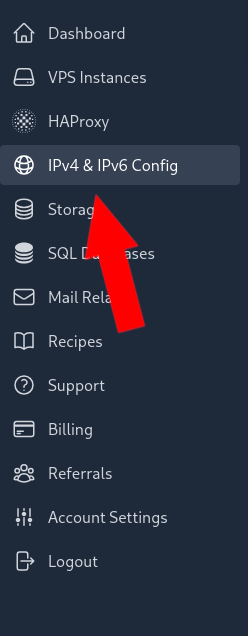
- In the IPv6 section, if there is not IPv6 allocated in the region, add one

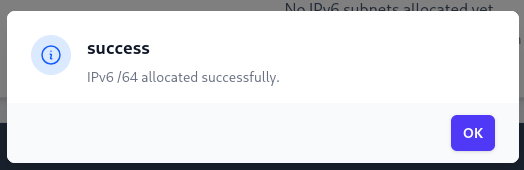
You should read the confirmation message:
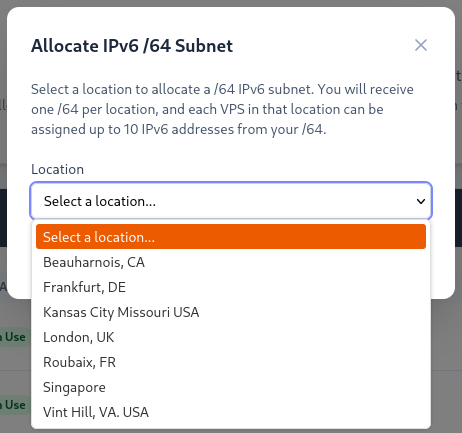
- If you need IPv6 for another region, you can add more.

Note that every region have its own IPv6 subnet. At the minute, you can't migrate those subnets.
- Bellow, there is the "VPS IPv6 Assignments" section, find the VPS you want to allocate an IPv6 in that section and click "add IP" then select a pool from the list.

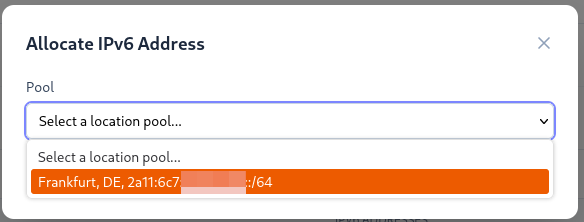
- You can choose the interface identifier of your IPv6 or click on "Suggest Next Available" to choose the IPv6 for your subnet to be added, then Allocate it.
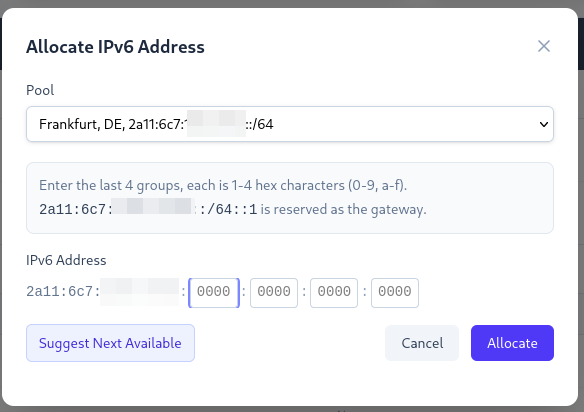

You can allocate multiple IPv6 to a single VPS as shown in the screenshot bellow

Collect the information
- From "Your /64 Subnets" section, collect the gateway IPv6 associated to the region you are configuring the VPS.
- From "VPS IPv6 Assignments" click on the clipbord at the right of your IPv6 to get the full IPv6 copied.

Use those information in the next section.
Configuration script example
Those are example provided to you, please update regarding the information providedi n the panel and your actual configuration and GNU/Linux distribution.
Alpine Linux
TH_IPV6="2a11:[...]::2" #collected from panel
TH_GATEWAY="2a11:[...]::1" #collected from panel

cat << EOF >> /etc/network/interfaces
iface eth0 inet6 static
    address $TH_IPV6
    gateway $TH_GATEWAY
EOF

#Adding cloudflare dns server
echo "nameserver 2606:4700:4700::1111" >> /etc/resolv.conf #Cloudflare DNS IPv6

rc-service networking restart
Debian Linux
Debian 13 using netplan
TH_IPV6="2a11:6c7:[...]::2" #collected from panel
TH_GATEWAY="2a11:6c7:[...]::1" #collected from panel
TH_MAC_ADDR=$(ip --brief l | grep -v UNKNOWN | awk '{ print$3 }')
TH_IP_ADDR=$(ip --brief a | grep -v UNKNOWN | awk '{ print$3 }')
TH_IP_GW=$(ip --brief r | grep -v kernel | cut -d ' ' -f 3)

cat << EOF > /etc/netplan/50-cloud-init.yaml
network:
  version: 2
  ethernets:
    ens3:
      match:
        macaddress: "$TH_MAC_ADDR"
      addresses:
      - "$TH_IP_ADDR"
      - "$TH_IPV6/64"
      nameservers:
        addresses:
        - 94.140.14.14
        - 94.140.15.15
        - 2606:4700:4700::1111
      gateway4: $TH_IP_GW
      gateway6: "$TH_GATEWAY"
EOF

netplan apply
Alma Linux
RedHat like distribution comes with nmtools
TH_IPV6="2a11:6c7:[...]::2" #collected from panel
TH_GATEWAY="2a11:6c7:[...]::1" #collected from panel

nmcli connection modify "cloud-init eth0" ipv6.method manual

nmcli connection modify "cloud-init eth0" ipv6.addresses "$TH_IPV6/64"

nmcli connection modify "cloud-init eth0" ipv6.gateway "$TH_GATEWAY"

nmcli connection modify "cloud-init eth0" ipv6.dns "2606:4700:4700::1111"

nmcli connection up "cloud-init eth0"
Final results
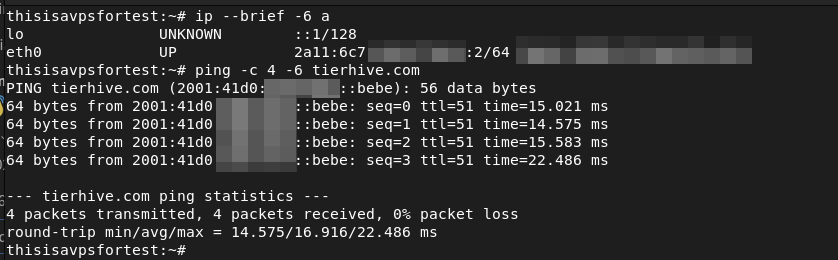
As you can see, there is an IPv6 configured on your main interface and you can ping using it.