Adding a Remote Desktop to Alpine 3.23 (128MB tier)
This guide adds a functional graphical desktop to the minimised Alpine 3.23 system built in the previous guide. Every command has been run on a real instance and the results recorded.
This guide assumes the minimised Alpine 3.23 base from the previous guide. https://tierhive.com/blog/tierhive-howto/how-to-run-alpine-with-just-23mb-ram Starting from a stock Alpine install may produce different results.
Minimum RAM: 128MB. The desktop stack consumes around 58MB with a session active.
Before
End state of the minimisation guide, nothing changed yet.
              total        used        free      shared  buff/cache   available
Mem:             91          23          51           0          17          62
Swap:             0           0           0
Filesystem Size Used Available Use% Mounted on
/dev/vda 953.0M 71.9M 834.1M 8% /Choices made
Remote access: XRDP. RDP is natively supported by Windows, and available on Linux via Remmina and FreeRDP. No client software to install on Windows machines. The session persists when you disconnect. Reconnect and your desktop is exactly as you left it.
Window manager: WindowMaker. Extensive testing against IceWM, FVWM, Openbox and others showed WindowMaker to have the cleanest dependency chain on Alpine. It uses its own WINGs toolkit and pulls in no GTK, no Python, no audio stack, no video codec libraries.
Terminal: st. A minimal X terminal with no dependencies beyond the X libraries already present.
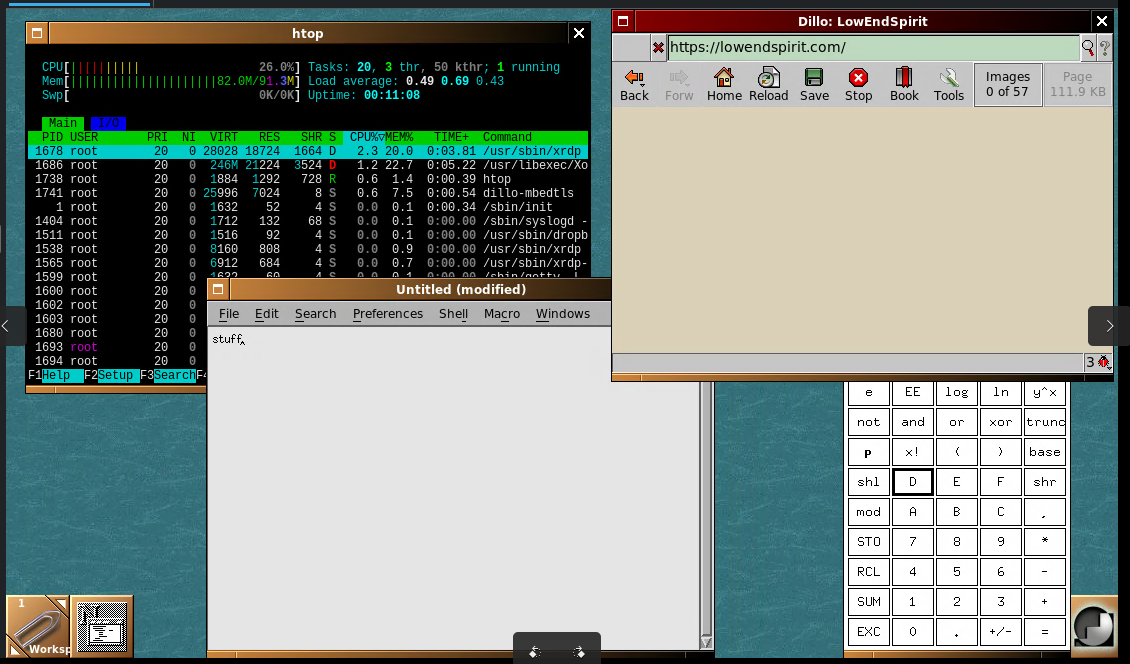
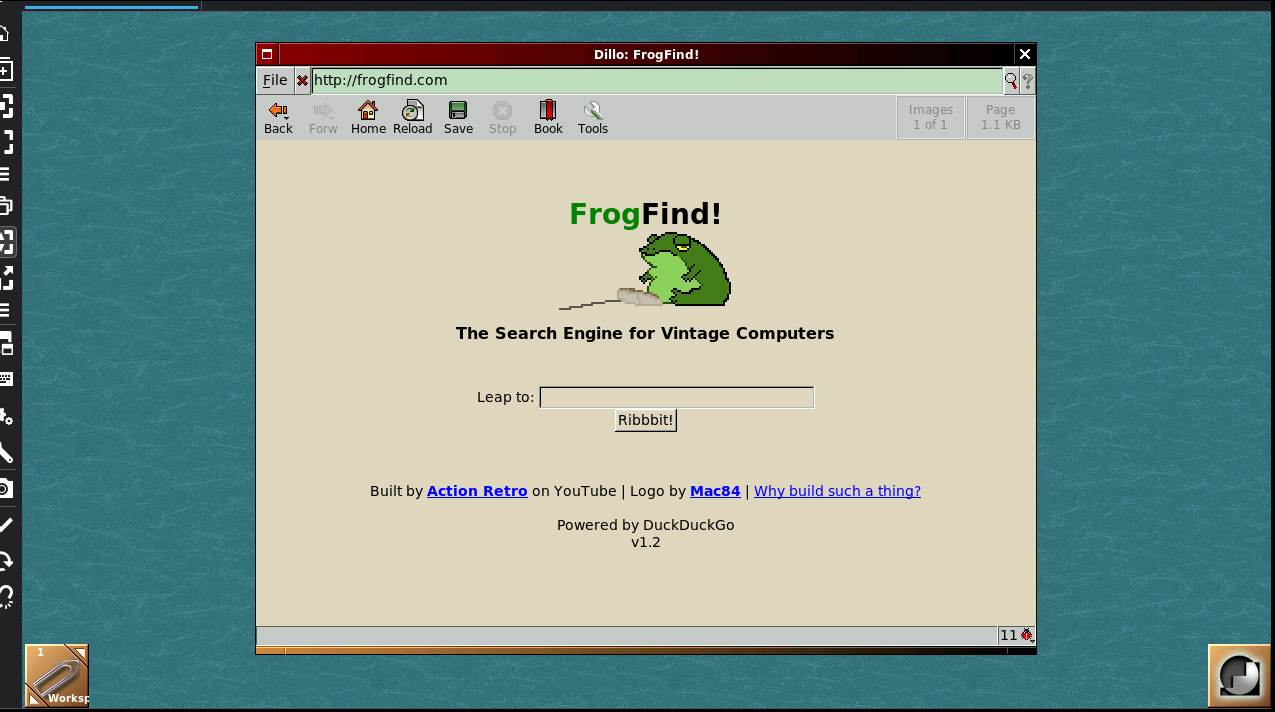
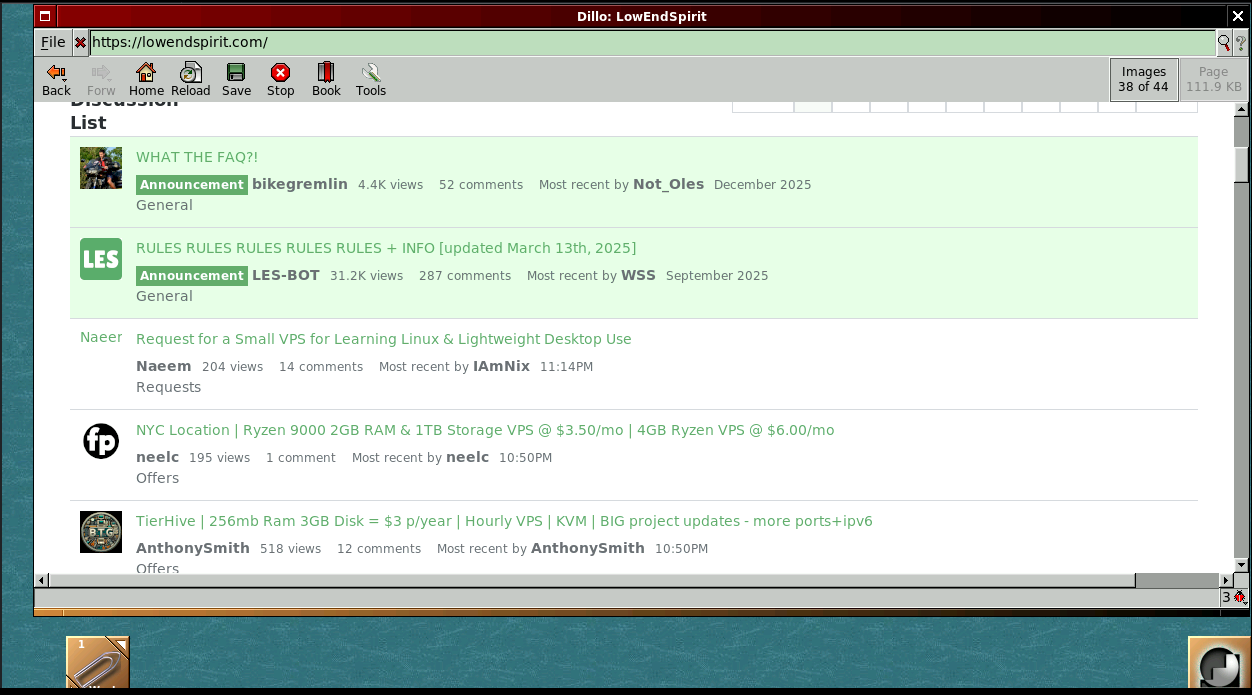
Browser: dillo. Lightweight graphical browser with TLS support built against mbedTLS.
Text editor: nedit. Graphical editor using the Motif toolkit. Two packages added.
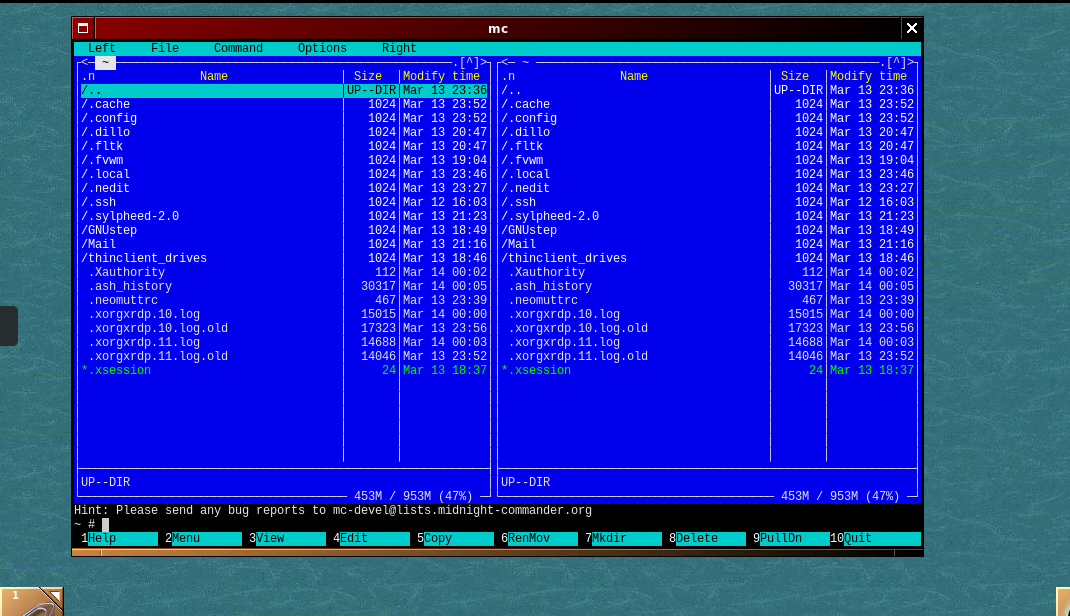
File manager: xfe. Dual-pane graphical file manager using the FOX toolkit. Four packages added. Midnight Commander (mc) is also installed for terminal use.
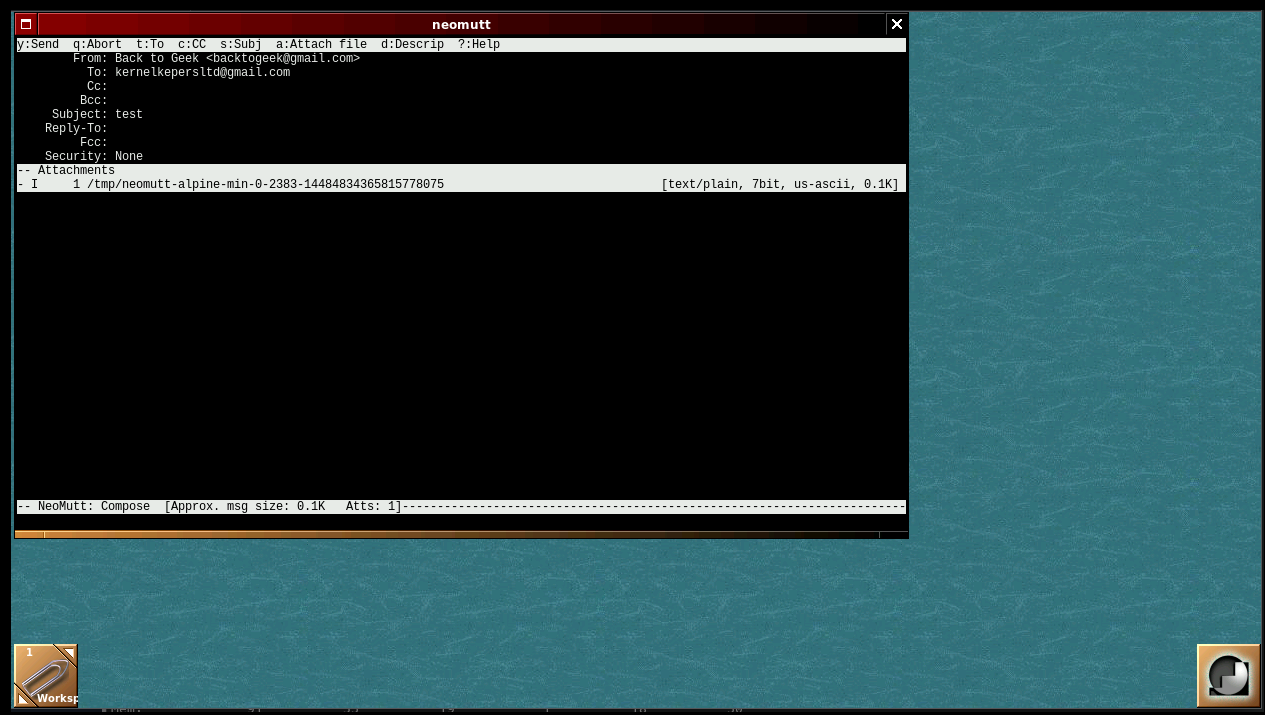
Mail: neomutt. No graphical mail client in the Alpine repositories has an acceptable dependency chain.
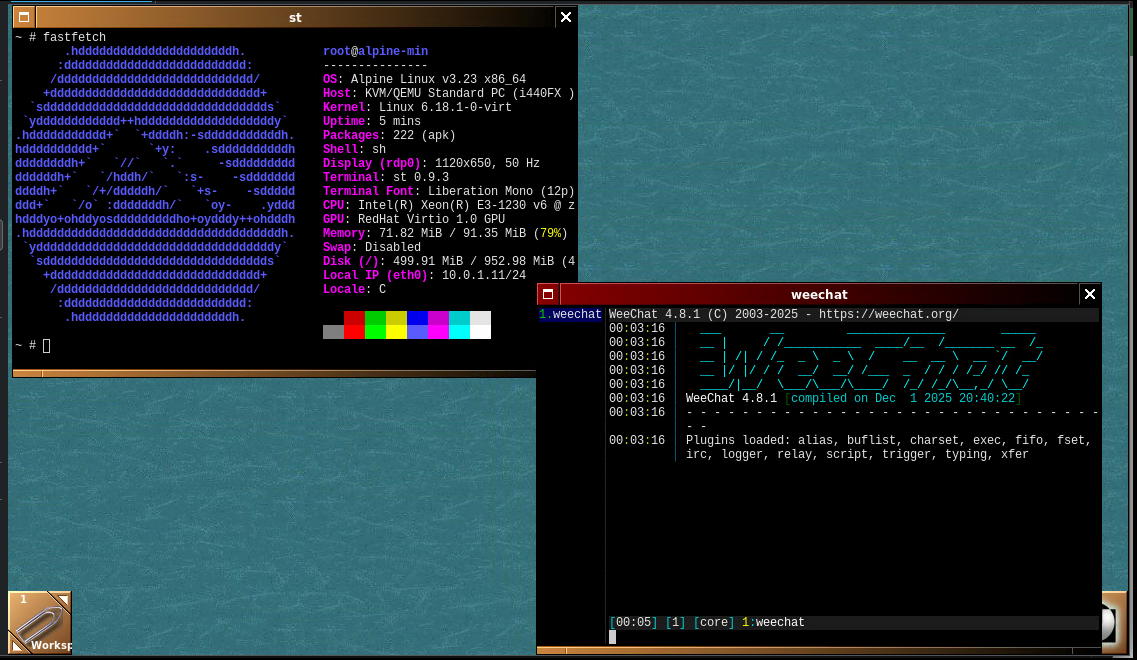
IRC: weechat. Terminal IRC client. Seven packages added.
Image viewer: feh. Lightweight image viewer that also handles wallpaper. Pulls in imlib2 and associated codec libraries as dependencies.
PDF viewer: mupdf. Minimal PDF viewer written in C.
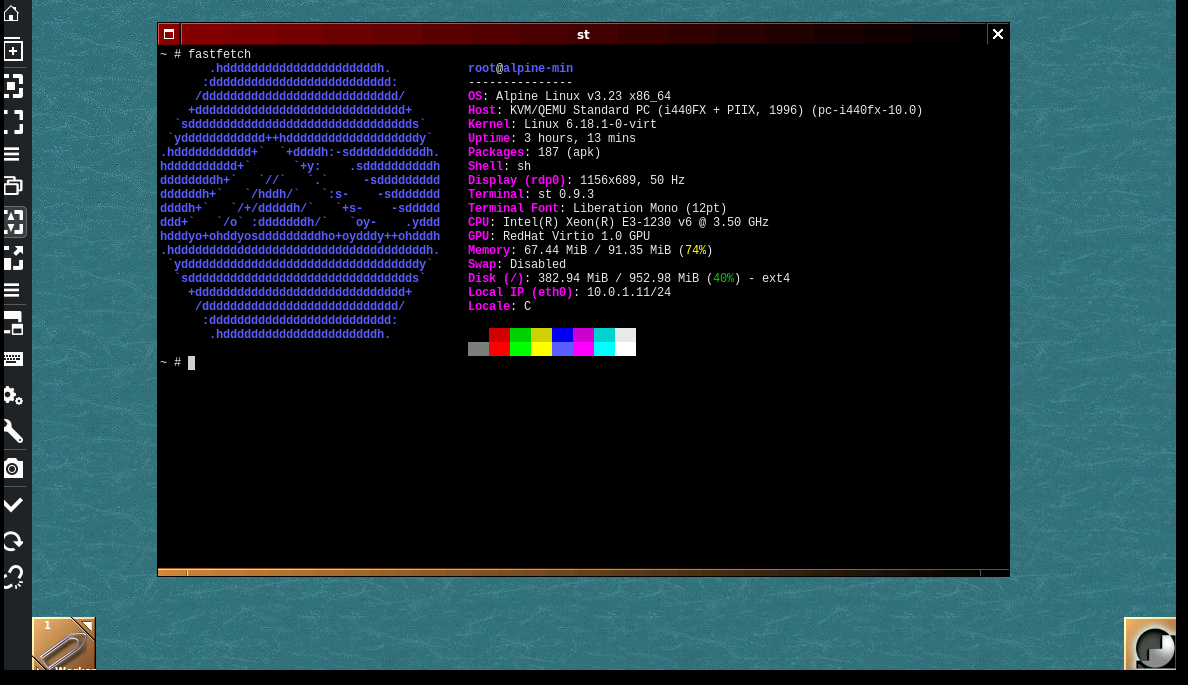
System utilities: htop, fastfetch, scrot, xcalc. htop and xcalc add one package each. scrot for screenshots. fastfetch for system information.
A note on Mesa
Installing xorg-server on Alpine 3.23 pulls in the full Mesa stack including LLVM. This adds approximately 250MB to disk. It is a hard dependency of the Alpine xorg-server package. It cannot be removed without removing Xorg itself. On a 1GB disk this is going to be a pain, but it is what it is.
Step 1: Install the desktop stack
The minimisation guide removed OpenSSH and its dependencies, including OpenSSL. The xrdp post-install script uses the openssl CLI to generate its RSA key pair. Install it first, remove it after.
xorgxrdpdoes not pull inxorg-serveras a dependency on Alpine. Install it explicitly or Xorg will not be present and sessions will fail to start.
apk add openssl
apk add xrdp xorgxrdp xorg-server windowmaker st dillo-mbedtls font-misc-misc font-dejavu neomutt xmessage fastfetch nedit xfe xcalc htop mupdf feh scrot mc weechat dillo-mbedtls
apk del openssl
Total added: 220 packages, approximately 410MB of disk. The big cost is LLVM (Mesa software renderer).
Step 2: Configure xrdp
Set the colour depth. The Alpine xrdp package defaults to 16bpp. Modern RDP clients request 32bpp and use the GFX protocol for dynamic resizing. With 16bpp the GFX protocol is rejected and dynamic resizing fails and you really want this.
sed -i 's/max_bpp=16/max_bpp=32/' /etc/xrdp/xrdp.iniSet the session limit. The default allows 50 simultaneous sessions. On a single-user 128MB VPS this is stupid and the number should reflect reality:
sed -i 's/MaxSessions=50/MaxSessions=1/' /etc/xrdp/sesman.iniKillDisconnected defaults to false. Sessions survive disconnection and resume when you reconnect. No change needed.
Fix the session startup script. On Alpine, xrdp's startwm.sh detects the distro and falls through to /etc/X11/xinit/xinitrc. This does not read ~/.xsession. Replace the script entirely:
cat > /etc/xrdp/startwm.sh << 'EOF'
#!/bin/sh
mkdir -p /root/GNUstep/Defaults
[ -f /root/GNUstep/Defaults/WindowMaker ] || printf '{\n}\n' > /root/GNUstep/Defaults/WindowMaker
printf '"%s"\n' '/root/GNUstep/Library/WindowMaker/menu' > /root/GNUstep/Defaults/WMRootMenu
exec wmaker
EOF
chmod +x /etc/xrdp/startwm.sh
When
~/GNUstep/Defaults/WindowMakerdoes not exist, WindowMaker treats the session as a first run and callswmmenugento build a menu from XDG.desktopfiles in/usr/share/applications/, overwritingWMRootMenubefore displaying anything. Creating an empty prefs file prevents this.WMRootMenumust contain a quoted proplist string pointing to the text-format menu file, not inline proplist content, which breaks on menu labels containing spaces.
Set a root password. if you have not already done that i.e. maybe using kay based auth xrdp authenticates via PAM and requires a password. SSH key authentication is not available over RDP:
passwd rootStep 3: Enable and start services
xrdp runs as two separate services: the RDP listener and the session manager. Both must be running.
rc-update add xrdp default
rc-update add xrdp-sesman default
rc-service xrdp start
rc-service xrdp-sesman start
xrdp listens on port 3389. On a NAT VPS, forward an external port to 3389 in your provider's portal.
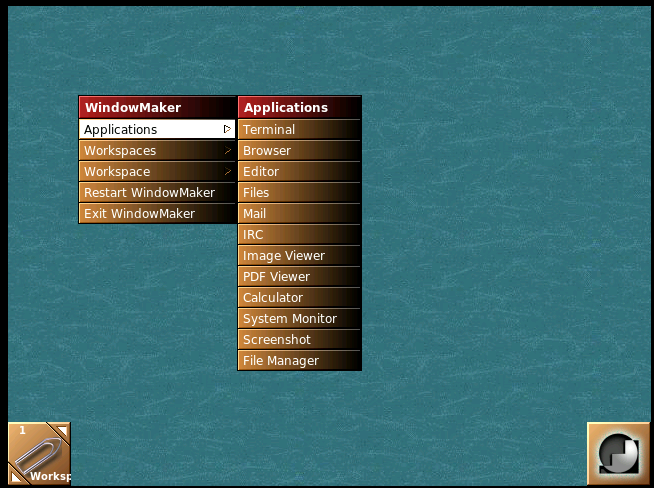
Step 4: Configure the WindowMaker menu
WindowMaker's right-click menu is loaded from a text file. generic names used, feel free to modify, Create the file:
mkdir -p ~/GNUstep/Library/WindowMaker ~/GNUstep/Defaults
cat > ~/GNUstep/Library/WindowMaker/menu << 'EOF'
"WindowMaker" MENU
  "Applications" MENU
    "Terminal" EXEC st
    "Browser" EXEC dillo-mbedtls
    "Editor" EXEC nedit
    "Files" EXEC xfe
    "Mail" SHEXEC "st -e neomutt"
    "IRC" SHEXEC "st -e weechat"
    "Image Viewer" EXEC feh
    "PDF Viewer" EXEC mupdf
    "Calculator" EXEC xcalc
    "System Monitor" SHEXEC "st -e htop"
    "Screenshot" EXEC scrot
    "File Manager" SHEXEC "st -e mc"
  "Applications" END
  "Workspaces" WORKSPACE_MENU
  "Workspace" MENU
    "Hide Others" HIDE_OTHERS
    "Show All" SHOW_ALL
    "Refresh" REFRESH
  "Workspace" END
  "Restart WindowMaker" RESTART
  "Exit WindowMaker" EXIT
"WindowMaker" END
EOF
To reload after editing the menu file, right click and reload WindowMaker or just disconnect and reconnect via RDP. The updated menu should load automatically on the next session start.
Step 5: Configure neomutt
NeoMutt supports Gmail via POP3 using an app password. Basic password authentication was removed by Google in 2022 ?!?. If 2-stage Verification is enabled on the Google account, an app password can be generated at myaccount.google.com > Security > 2-Step Verification > App passwords. Enable POP3 in Gmail at Settings > Forwarding and POP/IMAP > Enable POP for mail that arrives from now on.
I believe you can do something similar for MS based email, but I don't have one to test.
Create the notification script:
cat > /usr/local/bin/mutt-notify << 'EOF'
#!/bin/sh
xmessage -timeout 5 -center "New mail: $1 messages in $2" &
EOF
chmod +x /usr/local/bin/mutt-notify
Create the neomutt configuration:
mkdir -p ~/.cache/neomutt
cat > ~/.neomuttrc << 'EOF'
set realname = "Your Name"
set from = "you@gmail.com"

set folder = "pops://pop.gmail.com:995"
set spoolfile = "pops://pop.gmail.com:995"

set pop_user = "you@gmail.com"
set pop_pass = "your-app-password"

set pop_delete = no
set pop_reconnect = yes

set record = ""
set postponed = ""

set new_mail_command = "mutt-notify %n %f"
set header_cache = "~/.cache/neomutt/headers"

set sort = threads
set sort_aux = reverse-last-date-received
EOF
Connecting
Use any RDP client. On Windows, the built-in Remote Desktop Connection works without additional software. On Linux, Remmina or xfreerdp both work.
Connect to your external IP and forwarded port. Log in as root with the password set above.
Using WindowMaker
WindowMaker uses the NeXTSTEP (Hello old people) desktop paradigm, which differs from a Windows-style taskbar layout. The key elements:
- Right-click the desktop to open the application menu. This is how you launch applications.
- Top-left corner: the Clip, workspace switcher and application dock.
- Top-right corner: the Dock, pinned application icons.
- Minimised windows become small icons on the desktop, not entries in a taskbar.
It takes ten minutes to become comfortable with. The right-click menu is the main thing to get used too.
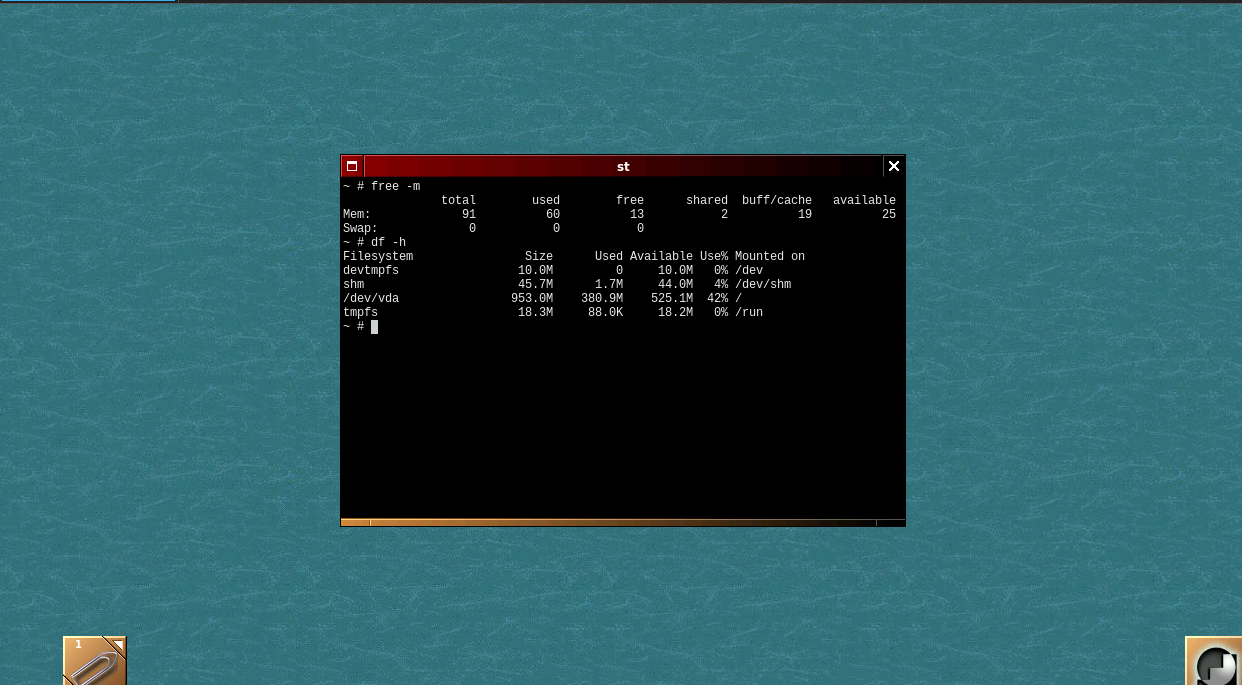
After
              total        used        free      shared  buff/cache   available
Mem:             91          58          27           0           6          27
Filesystem Size Used Available Use% Mounted on
/dev/vda 953.0M 478.5M 436.5M 52% /| RAM | Disk | |
|---|---|---|
| Minimal Alpine (end of previous guide) | 23MB | 71.9MB |
| xrdp daemon, no session | — | — |
| Active session | 58MB | — |
| Full stack installed | — | 478.5MB |
What is running in a connected session
xrdp— RDP listenerxrdp-sesman— session managerXorg— X server (via xorgxrdp driver, outputting to RDP client)wmaker— WindowMakersyslogd,dropbear,getty— from the base system
Package management before connecting
On a 128MB system, running apk with an active desktop session leaves very little headroom and risks the OOM killer terminating apk mid-operation, which can hurt the package database. Install everything you need before starting a session, or stop xrdp-sesman first:
rc-service xrdp-sesman stop
# run apk operations
rc-service xrdp-sesman start
Screenshots